
Payment at WINLAH – Deposit & Withdrawal Guide in MYR
WINLAH payment covers every deposit and withdrawal in Malaysian ringgit (MYR). Players can fund their WINLAH account through FPX online banking or popular Malaysian e-wallets, with USDT available for VIP players. The minimum deposit is RM1 and the minimum withdrawal is RM50. This guide explains each method, the usual processing times and the checks to make before you confirm a transaction.
WINLAH payment methods and limits
WINLAH groups its payment options into three channels. All amounts are shown and settled in MYR, and the deposit form displays the current limit for the method you select.
| Channel | Options | Minimum | Usual processing time |
|---|---|---|---|
| FPX online banking | Maybank2U, CIMB Clicks, RHB, Public Bank, Hong Leong, AmBank | Deposit RM1 | Deposit about 1–3 minutes |
| E-wallets | Touch ’n Go eWallet, Boost, GrabPay, ShopeePay | Deposit RM1 | Deposit about 1–3 minutes |
| Cryptocurrency (VIP) | USDT (TRC20) | Shown in the cashier | After network confirmation |
| Withdrawal | Malaysian bank account or e-wallet in the account holder’s name | RM50 | Usually 1–15 minutes |
Maximum amounts can differ by method and by account level, so always check the figure displayed in the WINLAH cashier before sending money.
How to deposit with WINLAH payment
Every WINLAH deposit starts from the cashier after you log in. Choose the channel first, then follow the steps shown for that method.
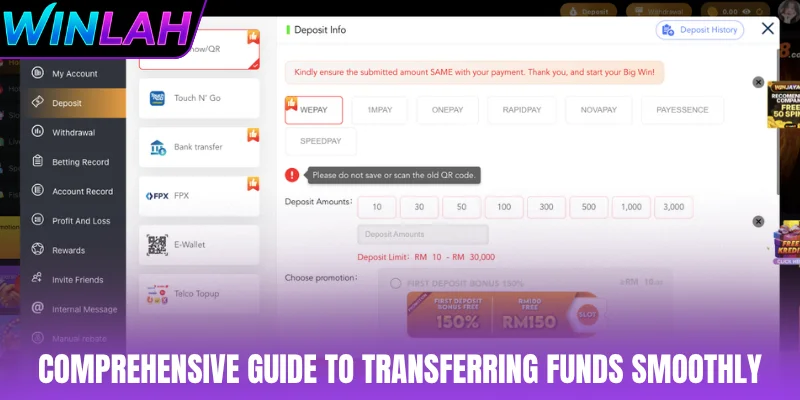
Deposit via FPX online banking
FPX moves money straight from a Malaysian bank account in a few steps.
- Log in, open Deposit and select FPX.
- Enter the amount in RM (minimum RM1) and choose a promotion if you want one, or skip it.
- Pick your bank – Maybank2U, CIMB Clicks, RHB, Public Bank, Hong Leong or AmBank – and approve the payment in your online banking.
FPX deposits are normally credited within 1–3 minutes of approval.
Deposit via Touch ’n Go, Boost, GrabPay or ShopeePay
E-wallet deposits follow a similar route.
- Select E-wallet in the deposit area and choose your wallet.
- Enter the amount in RM and confirm the request.
- Complete the payment in the e-wallet app, making sure the amount matches the request exactly.
USDT deposits for VIP players
WINLAH offers USDT on the TRC20 network for VIP players. Copy the wallet address shown for the current request, send only USDT on TRC20 and keep the transaction hash until the balance updates. Sending another token or using another network can result in lost funds.
How to withdraw with WINLAH payment
Withdrawals go to a Malaysian bank account or e-wallet registered in the same name as your WINLAH account. The minimum withdrawal is RM50, and requests are usually processed within 1–15 minutes once any verification is complete.
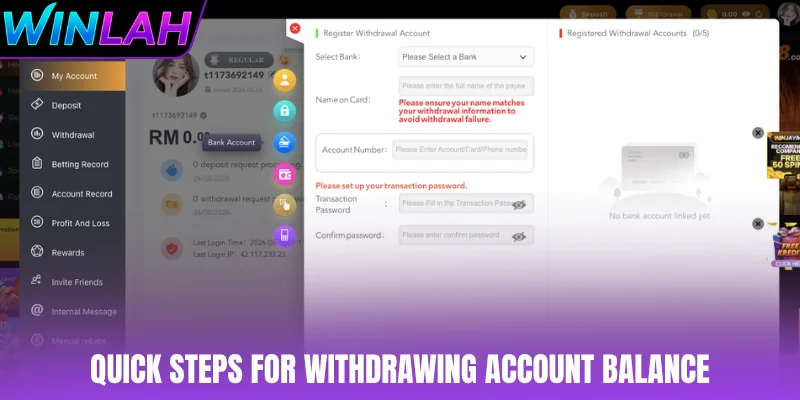
- Open Withdraw and check your available balance, including any bonus turnover still to complete.
- Select or add your bank account or e-wallet in your own name.
- Enter the amount (RM50 or more), confirm with your transaction password and submit.
- Track the request status and wait for the funds to arrive before sending another request.
What currency does WINLAH payment use?
WINLAH is built for Malaysia, so balances, bets, bonuses, deposits and withdrawals are all shown in Malaysian ringgit (MYR). Using the local currency means there is no conversion step between your bank or e-wallet and your gaming balance. VIP players who use USDT see the credited amount in MYR in their account.

Mobile access, including the cashier inside the app, is covered in the WINLAH app guide.
4 steps to complete a WINLAH payment safely
Whichever channel you choose, the same four checks help a WINLAH payment go through smoothly.
- Choose the channel – FPX, e-wallet or, for VIP players, USDT.
- Enter the amount within the limit shown for that method.
- Review the amount, bank or wallet and any promotion you selected.
- Complete the payment and wait for the balance to update before retrying.
Common WINLAH payment issues
Most payment problems come from a mismatch between the request and the actual transfer. The points below help you find the cause quickly.

Balance not credited after payment
FPX and e-wallet deposits normally arrive within 1–3 minutes. If the balance has not changed, check the transaction status in your bank or wallet, confirm the amount matches the request and contact 24/7 live chat with the reference number.
Withdrawal still pending
A pending withdrawal usually means verification is needed, a bonus turnover is incomplete or the receiving account name does not match your WINLAH account. Resolve the reason shown instead of submitting duplicate requests.
Wrong amount or expired request
Always create a new deposit request for each payment and never reuse old payment details. An amount that differs from the request may not be matched automatically.
Make sure you are logged in through WINLAH login before paying, check current offers on the WINLAH promotions page and set limits with our responsible gaming tools. WINLAH is for players aged 21 and over.
WINLAH payment questions
What is the minimum deposit and withdrawal at WINLAH?
Deposits start from RM1 and withdrawals from RM50, all in Malaysian ringgit.
Which banks and e-wallets can I use?
FPX online banking with Maybank2U, CIMB Clicks, RHB, Public Bank, Hong Leong and AmBank, plus Touch ’n Go, Boost, GrabPay and ShopeePay. VIP players can also use USDT (TRC20).
How long does a WINLAH withdrawal take?
Withdrawals are usually processed within 1 to 15 minutes to a Malaysian bank account or e-wallet registered in your own name. FPX and e-wallet deposits normally arrive in 1 to 3 minutes.
Conclusion
WINLAH payment keeps banking simple for Malaysian players: FPX with six major banks, Touch ’n Go, Boost, GrabPay and ShopeePay e-wallets, and USDT for VIP players, all in MYR. With a RM1 minimum deposit, a RM50 minimum withdrawal and processing that usually takes minutes, the key is to check the amount and account name before every transaction.